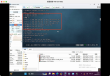
How to change the background image of vscode
This article is to share with you about how to change the background image of vscode. The editor thinks it is very practical, so share it with you as a reference and follow the editor to have a look.
How to set the background image in vscode:
1. Click expand in vscode, then search background, and then click "insert" to install:

2. After the installation is complete, restart vscode, enter User Settings user settings, and search background in the search box to configure:
User configuration / / "background.enabled": false,// uninstall plug-in opens "background.useDefault": false, "background.style": {"content": "'", "pointer-events": "none", "position": "absolute", "z-index": "99999", "width": "100%", "height": "100%", "background-position": "0%" "background-size": "cover", "background-repeat": "no-repeat", "opacity": 0.1}, "background.customImages": ["file:///D:/backgroundImage/rain.jpg"," file:///D:/backgroundImage/green.jpg"], Thank you for reading! This is the end of the article on "how to change the background picture of vscode". I hope the above content can be of some help to you, so that you can learn more knowledge. if you think the article is good, you can share it for more people to see!