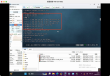
Centos7 configure Docker Swarm and install Portai
First, create a cluster
1. Initialize the manager node (xxx is the ip address of manager)
Docker swarm init-advertise-addr xxx.xxx.xxx.xxx
The following will be output. Note the bold italic command. To join the cluster, you need to use
Swarm initialized: current node (pk4p936t4e03cpse3izuws07s) is now a manager.
To add a worker to this swarm, run the following command:
Docker swarm join-token xxx xxx.xxx.xxx.xxx:2377
To add a manager to this swarm, run 'docker swarm join-token manager' and follow the instructions.
2. Worker joins the cluster and runs the above command on other docker servers
Docker swarm join-token xxx xxx.xxx.xxx.xxx:2377
3. Check the cluster situation
Docker node ls

Second, install Portainer
1. Create a portainer-stack.yml file
Version: '3'services: portainer: image: portainer/portainer volumes:-"/ var/run/docker.sock:/var/run/docker.sock"-"/ data/portainer:/data" deploy: placement: constraints: [node.role = = manager] # Control management interface is deployed on manager replicas: 1 restart_policy: condition: on-failure resources : limits: cpus: "0.2m memory: 200m labels: [svc=portainer] ports:-9000memory 9000
2. Start the portainer service
Docker stack deploy-c portainer-stack.yml portainer
3. Access the portainer and change the password (any ip,swarm whose xxx is a cluster will automatically do load balancer)
Visit http://xxx.xxx.xxx.xxx:9000