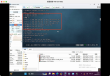
Badboy Automated Test tool 9 to view playback results
When running the script, Badboy provides Summary feature to make it easy for us to monitor the playback result status, as shown in Summary view:

The following table explains the dimensions of the operation:
Statistical point
Description
Played
The number of times a script is run or played back
Succeeded
The number of times the script was successfully run or played back
Failed
The number of times a script failed to run or play back
Assertions
Number of assertion failures
Warnings
The number of warnings generated. Warnings do not prevent playback when a problem occurs, just indicate a problem with your script or web site. For example, if there is a JavaScript error on a page or if the specified form cannot be found when filling in Form, it will be recorded as a warning of the playback response.
Timeouts
The number of times a timeout occurred
Avg Time (ms)
Average time to run or playback (milliseconds)
Max Time (ms)
Maximum time to run or playback (milliseconds)
Add a description to the script
Select the script, click "Ctrl-Shift-d", and add a title and description to the script (below)

Click on the top of the OK,Summary View to add a custom script description, and we can find that each subscript has its own Summary view (below). When you click on each subscript, the running summary to which it belongs will be presented independently.
The end of this session