How to add a control panel to the right-click menu of a laptop
This article is about how to add a control panel to the right-click menu of a laptop. The editor thinks it is very practical, so share it with you as a reference and follow the editor to have a look.
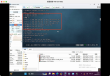
1. Use the combined shortcut key win + r key to open the run window, type "regedit" in the open run window and click OK to open the registry editor. As shown in the following figure
two。 In the registry editor window that opens, expand HKEY_CLASSES_ROOT-- > Directory-- > shell. As shown in the following figure
3. Right-click the shell item and click create a new item to change the name of the new item to Control Panel.
4. When you have finished creating the control panel item, right-click on the control panel item, and then create another item as well, and change the name of the new item to "command".
5. Click to open the command item, double-click to open the default string on the right, in the edit string window that opens, change the numeric data to "control.exe" and click OK to complete the operation.
Thank you for reading! This is the end of the article on "how to add a control panel to the right-click menu of a laptop". I hope the above content can be of some help to you, so that you can learn more knowledge. If you think the article is good, you can share it for more people to see!