How cad deletes a created block
Xiaobian to share with you how cad deletes a created block, I hope you have something to gain after reading this article, let's discuss it together!
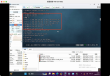
cad delete a created block method: first create a new cad diagram, enter the shortcut key "PU"; then click "block", spread the contents of the block; finally select the block to be cleared, click clear.
cad How to delete a created block:
1. Open a new CAD or open a diagram that has not been used before. Note: If this block is used in the figure, the corresponding block cannot be deleted.
2. Enter the shortcut key "PU" and click OK. You can see the following dialog box.
3. Click "Block" to spread out the contents of the block. Find the name of the block you want to clarify.
4. Select the block to be cleared and click Clear.
At this point, we can see that the selected block has been deleted. It should be noted that once a block is deleted, it cannot be restored, nor can it be retracted. Therefore, when deleting blocks in batches, be careful to avoid deleting useful blocks.
6. Later, if you still need to use blocks, you can set up blocks by creating block instructions.
After reading this article, I believe you have a certain understanding of "how cad deletes a certain created block". If you want to know more about it, please pay attention to the industry information channel. Thank you for reading!