How to check the frequency of memory bars in Win10
Editor to share with you how to check the frequency of memory bars in Win10, I believe that most people do not know much about it, so share this article for your reference, I hope you can learn a lot after reading this article, let's go to know it!
It is believed that computer users are no stranger to memory sticks. What I would like to mention here is that the frequency of the computer memory bar, the higher the frequency, the better the natural performance. when it comes to checking the frequency of the computer memory bar, what many people will think of at first is to use a third-party gadget to check, although there is also a green installation-free tool, but if you just check the frequency of the computer memory bar, you only need to use a command to query it!
The specific viewing methods are as follows:
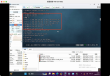
1. Press Win + R, open and run, and enter: cmd command, OK or enter, open the command prompt window
2. In the command prompt window, enter: wmic memorychip command, and enter enter
3. When you come out of a lot of English, you can also view the frequency of memory bars. What is shown here is 1600.
The above is all the contents of the article "how to check the frequency of memory bars in Win10". Thank you for reading! I believe we all have a certain understanding, hope to share the content to help you, if you want to learn more knowledge, welcome to follow the industry information channel!