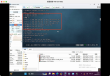
Report Printing of PowerDesigner12.5 physical data Model
First build the template
1. Report-- > Report Templates. Click New

2. Select Physical Data Model for report type Type, and click OK

3. On the left is the project in the report that can be generated. Double-click and select to add it to the right.
4. Select List of Table under the Related Diagram directory
Icon omission
Then select the List of Table Columns item under the Table directory, and in the right column, right-click List of Table Columns
5. Select Layout... in the right-click menu Pop-up window, select these 5 items
6. Save as template. And then return to the workspace.
Select the report Report menu, select the Generate Report project, and open the location where the template is saved
Choose a good saved format, usually RTF. Has been completed.
The attachment contains this template