How does windows install the MQTT server?
The knowledge points of this article include: mosquitto installation download, mosquitto configuration and mosquitto use, read the complete article I believe everyone has a certain understanding of mosquitto in MQTT server.
Mosquitto installation
Mosquitto has many versions. If you want to experience the new version, you can download the source file on github and compile it. It is more troublesome. I am using the version of windows provided by Mosquiitto here, although the version is not the latest, but stable.
1. download
Download https://mosquito.org/download/from the official website. The latest version is
mosquitto-1.6.8-install-windows-x64.exe
2. installation
Although the "next step" all the way is cool, the default path "C:\Program Files\mosquitto" contains spaces, so the installation here is in the mosquitto directory on drive C.
3. start the service
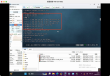
As shown in the figure below, the mosquitto command is only available after clicking Start Service.
4. User Name Password
Enter the directory "C:\mosquitto" to view the configuration file and commands of mosquitto.
4.1 modify the configuration
Find the mosquitto.conf file and add the following code anywhere to restart the service.
#Set not to allow anonymous logins allow_anonymous false#Set account password file location to C:\mosquitto\pwfile.examplepassword_file /mosquitto/pwfile.example4.2 Add username password (command line)
mosquitto_passwd -c pwfile.example username (using the-c argument causes the password file to be emptied and the user reinserted)
mosquitto_passwd pwfile.example username (do not use-c to indicate additional users, do not affect old users)
C:\mosquitto>mosquitto_passwd.exe pwfile.example username
Password:
Reenter password:
4.3 View username Password
After successful addition pwfile.example will appear just added user information.
5. Test 5.1 Start Service
Open a new command line window and start the service with the following command.
C:\mosquitto>mosquitto.exe -c mosquitto.conf
5.2 subscribe message
A new command-line window is opened to subscribe to mosquitto_sub -u cx -P cx -t 'virus /topic'-v, which receives subscription messages when the 5.3 command is executed.
C:\mosquitto>mosquitto_sub -u cx -P cx -t 'virus /topic' -v
'virus/topic' 'exterminate virus'
'virus/topic' 'exterminate virus'
'virus /topic' 'exterminate virus'
5.3 send a message
Open a command line window and send the message mosquitto_pub -u cx -P cx -t 'virus/topic' -m 'exterminate virus'
C:\mosquitto>mosquitto_pub -u cx -P cx -t 'virus/topic' -m 'exterminate virus'
6. If you don't want to use the above command line for testing, you can also use the MQTT client paho(http://www.eclipse.org/paho/components/tool/) for testing.

After reading the above, do you have any further understanding of mosquitto in MQTT server? If you still want to learn more skills or want to know more related content, welcome to pay attention to the industry information channel, thank you for reading!