




In addition to Weibo, there is also WeChat
Please pay attention
WeChat public account
Shulou



2026-07-05 Update From: SLTechnology News&Howtos shulou NAV: SLTechnology News&Howtos > IT Information >
Share
Shulou(Shulou.com)11/24 Report--
CTOnews.com news on December 16, loyal users of CTOnews.com, how do you copy / cut files in Win10 / Win11 system? Do you drag and drop two file manager windows side by side? Or right-click the file, then open the destination path folder, and then click paste? In addition to the above two methods, this article introduces another way to quickly copy / cut files.
Note: the above method is suitable for both Win10 and Win11 systems.
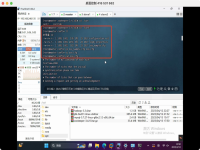
As shown in the screenshot and motion picture above, the user can right-click the file to see the "copy to folder" and "move to folder" functions, click to select the target path in the pop-up box, and then click the "copy / move" button.
CTOnews.com users can enable it by following the steps below:
1. Open the start menu
two。 Search for regedit and open the Registry Editor
3. Open the HKEY_CLASSES_ROOT\ AllFilesystemObjects\ shellex\ ContextMenuHandlers path
4. Right-click the blank area on the right, and click "New"-"item"
5. Rename the newly created item to "Copy to folder"
6. The default string to the right of the right button
7. Modify numeric data to "{C2FBB631-2971-11D1-A18C-00C04FD75D13}" (excluding "")
8. Click the OK button
9. Right click ContextMenuHandlers and click "New"-"item"
10. Rename the newly created item to "Move to folder"
11. The default string to the right of the right button
twelve。 Modify numeric data to "{C2FBB631-2971-11D1-A18C-00C04FD75D13}" (excluding "")
13. Click the "confirm" button
14. Restart the computer
Welcome to subscribe "Shulou Technology Information " to get latest news, interesting things and hot topics in the IT industry, and controls the hottest and latest Internet news, technology news and IT industry trends.
Views: 0
*The comments in the above article only represent the author's personal views and do not represent the views and positions of this website. If you have more insights, please feel free to contribute and share.

The market share of Chrome browser on the desktop has exceeded 70%, and users are complaining about

The world's first 2nm mobile chip: Samsung Exynos 2600 is ready for mass production.According to a r


A US federal judge has ruled that Google can keep its Chrome browser, but it will be prohibited from
Continue with the installation of the previous hadoop.First, install zookooper1. Decompress zookoope





About us Contact us Product review car news thenatureplanet
More Form oMedia: AutoTimes. Bestcoffee. SL News. Jarebook. Coffee Hunters. Sundaily. Modezone. NNB. Coffee. Game News. FrontStreet. GGAMEN
© 2024 shulou.com SLNews company. All rights reserved.
 12
12
 Report